
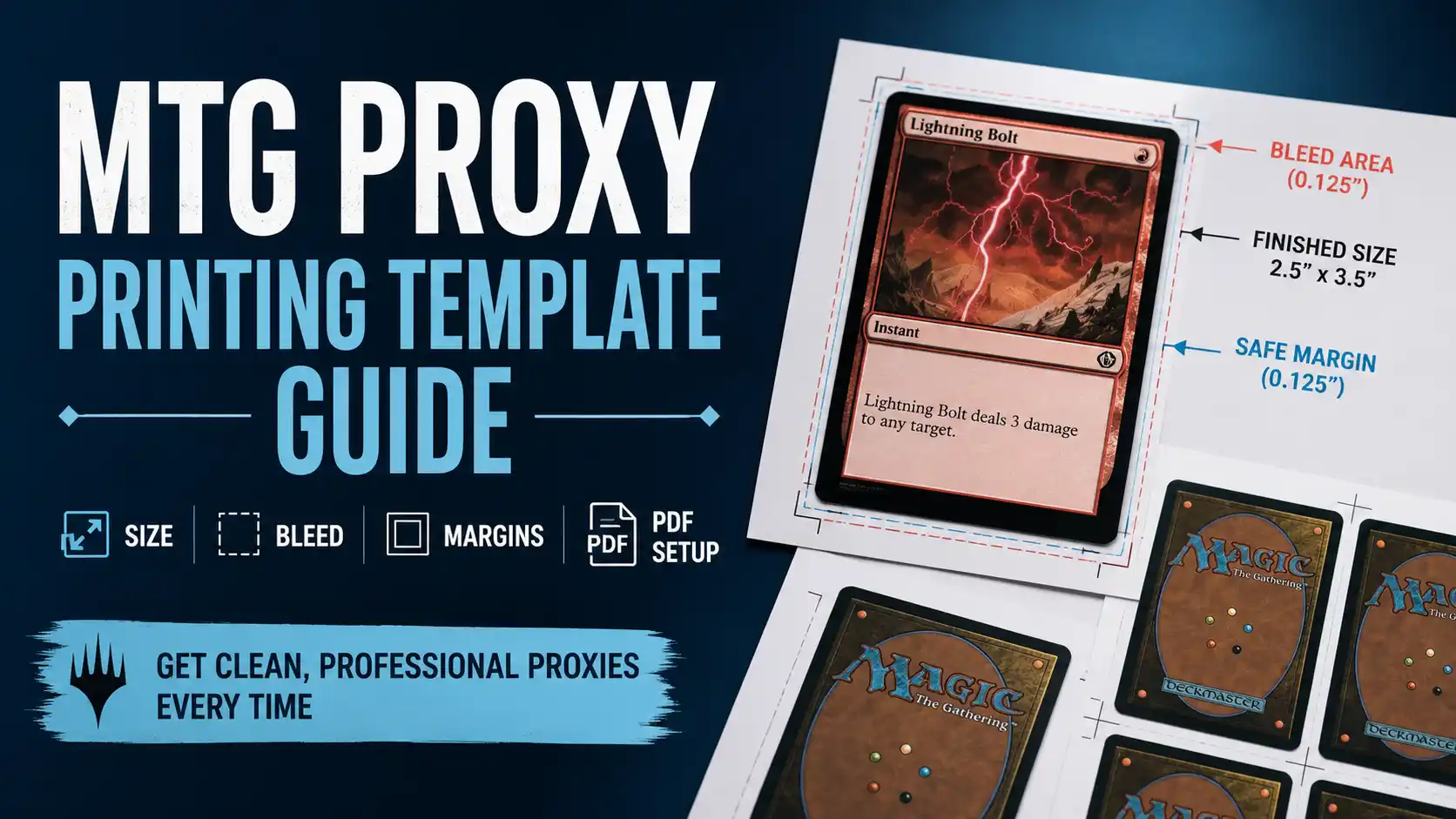
Getting an MTG proxy to look good is not just about finding a sharp card image and hitting print. That works for a quick kitchen-table test, sure. But if you want a proxy deck, cube, or playtest gauntlet that feels clean in sleeves and does not look like it was cut out during a power outage, the template matters.
The main pieces are card size, bleed, safe margins, image resolution, sheet layout, and PDF export settings. None of this is especially difficult, but it is easy to mess up in small ways. A card printed at 96 percent scale will feel wrong. A border with no bleed may show tiny white edges after cutting. A low-resolution JPG can make rules text look like it was chewed.
This guide walks through the practical setup for MTG proxy printing templates, whether you are printing at home or preparing files for a cleaner print-on-demand workflow through a service like PrintMTG.
Standard MTG Card Size
A standard Magic: The Gathering card is roughly 63 x 88 mm, which is about 2.48 x 3.46 inches. In many print workflows, people round this to 2.5 x 3.5 inches because that is the common poker-card size. The difference is small, but small differences matter when a card is shuffled into a sleeved deck.
For casual proxy printing, there are two common approaches:
Use the closer MTG size: 63 x 88 mm
Use poker size: 2.5 x 3.5 inches
If you are printing paper proxies to slip in front of basic lands, 63 x 88 mm is usually the better reference because the proxy only needs to align with a real card inside a sleeve. If you are using a playing-card print service, 2.5 x 3.5 inches may match the printer’s template better. Always follow the printer’s template if you are ordering professionally printed cards.
The most common mistake is not the exact size you choose. It is accidental scaling. A file designed correctly can still come out wrong if the print dialog is set to “fit to page” or “shrink oversized pages.” For home printing, always print at 100 percent scale. Not 97 percent. Not “fit.” Not “whatever the printer driver feels like today.”
Finished Size vs. Bleed Size
A print template usually has at least two sizes:
Finished size
Bleed size
The finished size is the final trimmed card. For MTG-style proxies, that is usually around 63 x 88 mm or 2.5 x 3.5 inches, depending on your template.
The bleed size is larger. It includes extra artwork that extends beyond the cut line. This gives the cutter a little room to be imperfect without leaving white edges.
A common bleed allowance is 1/8 inch on each side, or about 0.125 inches. In metric terms, that is about 3 mm. Some printers use slightly different bleed requirements, so do not treat 1/8 inch as sacred law. It is a common print standard, not a magical incantation.
For a 2.5 x 3.5 inch card with 1/8 inch bleed on all sides, the full document size becomes:
2.75 x 3.75 inches
That is because you add 0.125 inches to the left, 0.125 inches to the right, 0.125 inches to the top, and 0.125 inches to the bottom.
The finished card is still 2.5 x 3.5 inches. The extra area gets cut off.
Safe Margins: Keep Text Away From the Edge
Bleed protects the edges. Safe margins protect the content.
The safe margin is the inner zone where important text, icons, power and toughness boxes, names, mana costs, and other readable details should stay. If something important is too close to the cut line, even a tiny trim shift can make the card look off.
For MTG proxy templates, a practical safe margin is about 1/8 inch inside the trim line. More is safer, especially for custom cards with nonstandard layouts. Do not place essential rules text, card names, or symbols right at the edge unless you enjoy living dangerously for no useful reason.
Think of the template as three zones:
Bleed zone: background art continues here and gets cut off
Trim line: where the card is supposed to be cut
Safe zone: where important content should stay
Background art can run through all three zones. Text should stay inside the safe zone.
Pixel Dimensions and Resolution
For print, 300 DPI is the usual minimum target. DPI means dots per inch, and in design software you will usually see PPI, or pixels per inch. In casual conversation, people often use the terms interchangeably, even though print people may twitch slightly when they hear it.
At 300 PPI, a 2.5 x 3.5 inch finished card is:
750 x 1050 pixels
If you build with 1/8 inch bleed, the full 2.75 x 3.75 inch file becomes:
825 x 1125 pixels
For the closer 63 x 88 mm MTG size, the finished size converts to about 2.48 x 3.46 inches. At 300 PPI, that is roughly:
744 x 1038 pixels
Those numbers are minimums for clean printing. Higher resolution can be useful, but only if the source image is genuinely higher quality. Upscaling a blurry image does not create detail. It creates a larger blurry image, which is not a victory.
The most important areas are small text, mana symbols, borders, and rules boxes. Art can survive a little softness. Rules text cannot.
Choosing the Right Image Format
The safest format for individual card images is usually PNG. PNG is lossless, which means it avoids the compression artifacts that can make text and symbols look crunchy. JPG can work if the quality is high, but repeated saving makes it worse. Every time a JPG is compressed again, fine details can degrade.
For final print layout, PDF is usually best. A good PDF preserves page size, card placement, and scaling more reliably than a folder full of loose image files. PrintMTG’s own guidance on proxy file formats makes the same general point: PDF is typically best for full-sheet and deck printing, PNG is strong for single-card images, and JPG is the riskier option when text clarity matters.
A practical workflow looks like this:
Design or export individual card images as PNG
Place them into a print layout at exact size
Export the full sheet or deck as a high-quality PDF
Print the PDF at 100 percent scale
Avoid web-compressed images when possible. If a card looks soft before printing, it will not become sharp because you put it in a PDF. PDF is a container. It does not rescue weak source art. It just preserves what you give it.
PDF Page Setup for Home Printing
For home printing, the most common layout is nine cards per page on standard letter paper. You can also use A4, but the exact spacing will change.
On US letter paper, which is 8.5 x 11 inches, nine MTG-size cards fit in a 3 x 3 grid if you keep spacing tight and do not include large bleed. This is great for sleeve inserts. It is less ideal for full-bleed trimming because you need room between cards for cuts.
If you are printing paper proxies that will go in front of real cards, you can use a simple 3 x 3 layout with crop marks or thin cut lines. In that case, you do not always need full bleed because the paper insert will be hidden inside a sleeve behind a real card. Still, clean sizing matters.
Use these settings when printing at home:
Scale: 100 percent
Do not use fit to page
Do not use shrink to printable area
Print at highest quality
Use borderless only if your file was designed for it
Disable “auto rotate and center” if it causes layout changes
Test one page before printing the whole deck
That last step matters. Print one sheet, cut one card, sleeve it in front of a basic land, and compare it to a real sleeved Magic card. If the card is too small, too large, or visibly shifted, fix the template before printing the full deck. Paper is cheap, but wasting 100 sheets still feels dumb.
PDF Setup for Professional Printing
Professional printing is stricter than home printing. A print shop or card printer needs the file to match its template exactly. That means the document size, bleed, resolution, color settings, and export preset all matter.
A professional card PDF should usually include:
Correct full bleed size
300 PPI or higher images at final size
Crop marks only if the printer requests them
Embedded fonts if live text is present
High-quality print export preset
No low-resolution downsampling
No “smallest file size” PDF setting
The “smallest file size” preset is one of the fastest ways to ruin a print file. It is meant for emailing and web use, not detailed card printing. It often compresses images aggressively and can soften small text.
If the file includes live text, embed fonts or convert text to outlines, depending on the printer’s preference. Embedded fonts preserve editability. Outlines prevent font substitution. Font substitution is the thing where your careful card layout suddenly uses a default font that looks like it came free with a 2003 office printer.
For card backs, use a non-official design unless you are following a printer’s specific proxy policy. Clear proxy labeling is a good habit. It reduces confusion and helps keep the cards clearly in the casual and playtest lane.
Full-Bleed Cards vs. Bordered Cards
Not every MTG proxy needs to be full bleed. In fact, bordered cards are easier to print cleanly because small trim shifts are less obvious. If the artwork stops at a black border, the edge has some forgiveness.
Full-art and borderless cards are less forgiving. If the image runs to the edge and there is no bleed, even a tiny cut shift can reveal a white line. That is why full-bleed templates need extra artwork beyond the trim line.
For custom cards, extend background art into the bleed area, but keep the frame, name, type line, rules text, and power/toughness safely inside the trim. This gives the card a clean edge without risking cut-off details.
If you are creating cards from scratch with a tool like an MTG card maker, double-check whether the export includes bleed. Some tools export only the visible finished card. That may be fine for home sleeve inserts, but it is not ideal for professional full-bleed card printing.
Margins Between Cards on a Sheet
If you are laying out multiple cards on one sheet, leave enough space between them for cutting. If cards touch edge to edge, one imperfect cut affects two cards. A small gutter between cards makes trimming easier.
For home cutting, a gutter of 0.1 to 0.25 inches between cards is helpful. If you are using scissors, leave more space. If you are using a rotary cutter or guillotine cutter, tighter spacing is manageable.
Add crop marks if they help you cut accurately. Keep them outside the finished card area. Do not put cut guides over the card face unless you want every proxy to look like it survived a planning meeting.
For sleeve-insert proxies, small imperfections are hidden by the sleeve and backing card. For standalone printed proxies, cutting accuracy matters more because the card itself needs to be consistent.
Color Mode: RGB vs. CMYK
Most card images and online card databases are RGB because screens use RGB. Many print workflows use CMYK because printers use inks. This can cause color shifts, especially in bright blues, reds, greens, and purples.
For home printing, RGB files are usually fine. Your printer driver will convert them. For professional printing, follow the printer’s instructions. Some online printers prefer RGB because their own color management handles conversion. Others want CMYK PDFs.
The safest advice is boring: do what the printer’s template says.
If you are building proxies mainly for gameplay, color does not need to be museum-perfect. The card needs to be readable and consistent. If you are building a premium cube, gift deck, or art-heavy custom project, color testing matters more. Order a small test batch before printing hundreds of cards.
Using Scryfall and Deckbuilding Tools
For personal playtesting, many players build lists in tools like Moxfield, Archidekt, EDHREC, or Scryfall before turning those lists into proxies. Scryfall is especially useful because it indexes card printings and image variants, including different image sizes through its card image system. That makes it a useful research tool when deciding which printing or art version you want to reference.
The important part is to keep the workflow organized. Do not download random images, rename them vaguely, and hope you remember what they are later. Use filenames that include the card name, set, and version when possible. Your future self will thank you, though probably not out loud.
A clean decklist workflow looks like this:
Finalize the decklist in your deckbuilding tool
Choose the card versions you want
Export or collect the card images
Place cards into a properly sized template
Export a high-quality PDF
Print one test sheet
Then print the full batch
That one-page test saves more trouble than any other step.
Responsible Proxy Setup
Proxy templates should be used for casual play, testing, Commander pods that allow proxies, cube nights, and personal projects. Wizards of the Coast’s proxy policy distinguishes personal playtest cards from authentic cards required in sanctioned events, and it also clearly separates playtest cards from counterfeits.
That distinction matters. A proxy should not be used to deceive a buyer, tournament organizer, judge, or player. The safest proxy cards are readable, consistent, and clearly not intended for resale as authentic cards.
Good proxy habits include:
Use alternate card backs
Mark custom cards or proxies clearly
Do not add fake security features
Do not sell cards as authentic
Ask your playgroup or store before playing them
Avoid using proxies in sanctioned events unless a judge has issued one during that event
Most proxy drama is not about paper. It is about expectations. Have the conversation before the game starts and everyone has a better night.
Quick Template Checklist
Before you export your MTG proxy PDF, check the basics:
Finished card size is correct
Bleed is included if needed
Important text stays inside the safe zone
Images are 300 PPI or higher at final size
Card fronts are aligned consistently
Card backs, if used, are aligned consistently
PDF is exported for print, not web
Fonts are embedded or outlined
No aggressive image compression is applied
Print settings are set to 100 percent scale
One test sheet has been printed and checked
If you are ordering from a service such as ProxyMTG, much of this setup may be handled inside the ordering workflow. Still, understanding the template basics helps you spot problems before they become a full printed stack of “almost right.”
Final Thoughts
An MTG proxy printing template is really just a system for controlling small details. Size keeps the cards consistent. Bleed prevents ugly edges. Safe margins protect text. Resolution keeps the card readable. PDF setup keeps the layout from shifting. None of these steps are glamorous, but they are the difference between a clean proxy deck and a pile of cards that feel slightly cursed.
For quick testing, a nine-up PDF printed at 100 percent scale is usually enough. For long-term Commander decks, cubes, and playtest gauntlets, take the time to set up bleed, safe zones, and high-quality export settings. Print one sheet, sleeve it, compare it to a real card, and adjust before committing to the full batch.
Do that, and your proxies will do what they are supposed to do: help you play more games, test more ideas, and spend less time fighting your printer like it is the final boss of office equipment.